
Native on macOS
Made for the Mac from the ground up, so it feels like the rest of your Mac — not a port.
Native macOS app for construction PDFs
ConstructPDF is a native Mac PDF app for marking up and measuring plans — with a familiar Revu‑style layout, so you know where everything is from the first sheet.
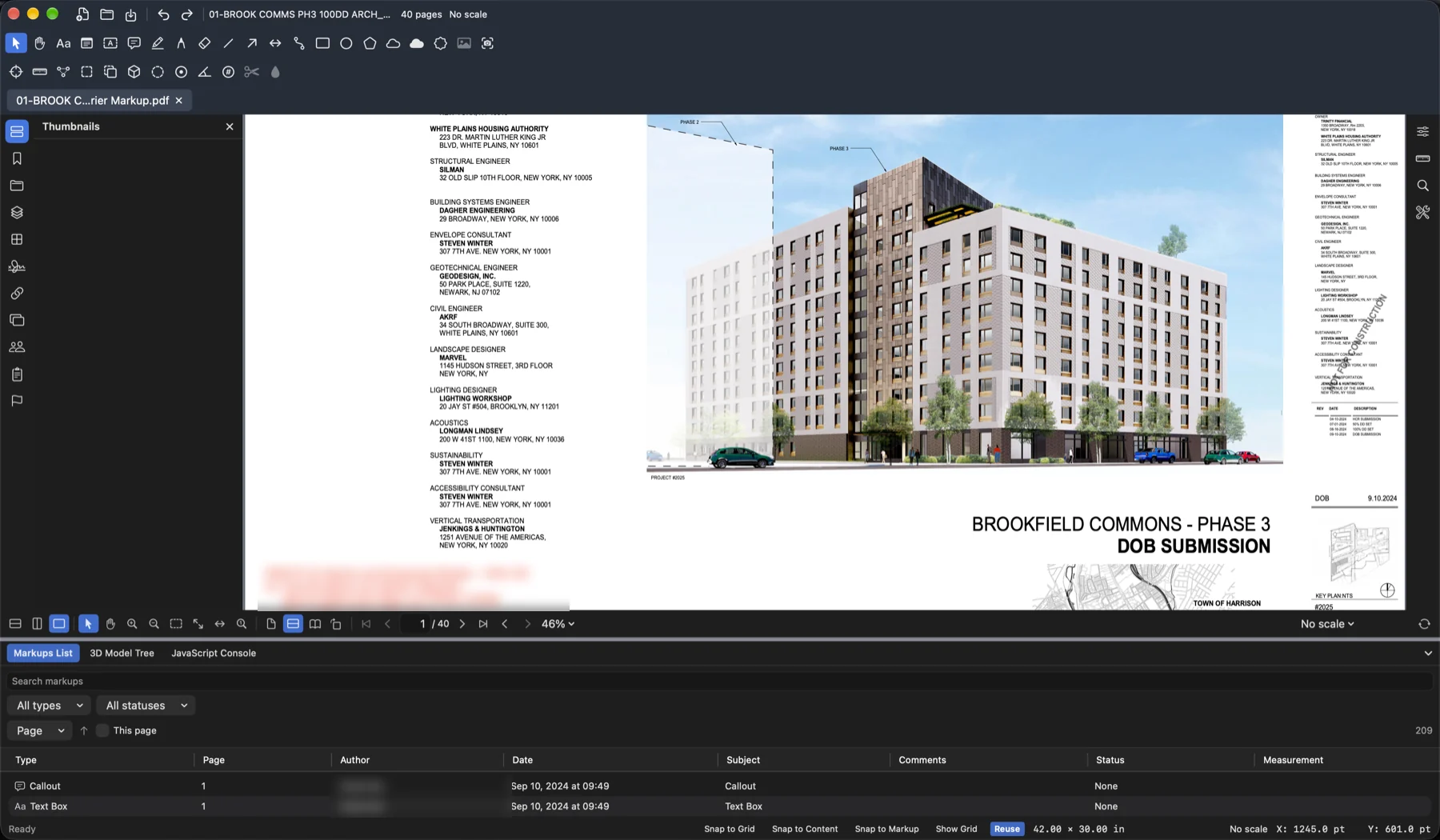
ConstructPDF on macOS, with the Markups List docked under the drawing.
Built for Mac
No virtual machine, no browser tab pretending to be software. ConstructPDF is built natively for macOS, and it’s laid out the way construction people already work.
Made for the Mac from the ground up, so it feels like the rest of your Mac — not a port.
Toolbars up top, panels at the sides, the Markups List below. If you know Revu, you already know your way around.
A full set of markup tools, scale calibration and takeoff measurements, all on the same sheet.
Measurement & takeoff
Set the scale on a sheet with scale calibration, then take measurements straight off the drawing.
Markup
A full set of markup tools to redline a set — and the Markups List and Tool Chest to keep it all under control.
Everything you reach for when reviewing drawings.
Every markup in the document in one sortable table. Click a column to sort by type, page, author or status.
| Cloud | 1 | Architect | Open |
| Area | 2 | Estimator | None |
| Callout | 3 | GC | Open |
| Count | 4 | Estimator | None |
| Text Box | 7 | Architect | Closed |
| Length | 9 | GC | None |
Keep your go‑to markups one click away, ready to reuse across sheets.
Workspace
Split view keeps two views in front of you at once, and snapping puts every point exactly where you meant it.
Divide the workspace to compare a plan with its detail — or two areas of a sheet — without flipping back and forth.
Snap to the grid, to content in the drawing, or to other markups. Toggle each one on or off as you work.
Why switch
A native app that opens your sets on your Mac directly — no emulation layer, no browser in between.
Built for macOS, so it fits in with your Mac and the way you already work on it.
A Revu‑style layout means no relearning: the tools, panels and Markups List are where you expect them.
FAQ
ConstructPDF is a native macOS PDF app for construction drawings. It combines a full set of markup tools with scale calibration and takeoff measurements in a familiar Revu‑style layout.
Yes. ConstructPDF is built natively for macOS — it isn’t a web app or a Windows program running in a virtual machine.
Length, Polylength, Area, Perimeter and Count. Calibrate the scale on a sheet first so measurements reflect real‑world dimensions.
That’s the idea. ConstructPDF uses a Revu‑style layout — markup toolbars along the top, panels at the sides and a Markups List below the drawing — so the basics carry straight over. ConstructPDF is an independent product and isn’t affiliated with Bluebeam.
The Markups List shows every markup in the document in a sortable table. The Tool Chest keeps the markup tools you use most close at hand so you can reuse them.
Yes. Split view shows two views side by side, and snapping to grid, content and markup helps you place points precisely.
Join the beta and we’ll be in touch — email hello@example.com.

Markup, measure and stay organized — natively.